

Introduction:
When working on the MS Access application, you may experience the “Microsoft Access is not responding” error. It usually occurs while opening a large-sized or damaged Access database file. It can also appear while executing VBA scripts, specifically if the code contains an infinite loop or if you are using the ScriptControl class to load large-sized scripts. Some Access users have reported that Access stops responding while waiting for an external ADO query to finish.

When this error appears, the application may get stuck or freeze, preventing you from accessing the data or performing any action. In this post, we'll discuss some easy methods to resolve the 'Microsoft Access is not responding' error.
What does "Not Responding" or "Has Stopped Working" Mean in Access?
The Microsoft Access not responding error usually means that your application is temporarily frozen. However, it may recover and start working again depending on the situation. For example, if it occurs due to a large, complex query or a large table calculation, it will start working again when the function is complete.
If you face the “Microsoft Access has stopped working” issue, it means your Windows operating system has forcefully closed the application. Such issues can occur due to reasons, like corrupted database files, conflicting add-ins, outdated drivers, missing latest Windows updates, etc.
Why Microsoft Access stops Responding or Crashes?
There could be several reasons why Microsoft Access stops responding. Some of the reasons are described in the following table:
| Reason | How It Cause Access to Freeze or Crash |
|---|---|
| Faulty or incompatible add-ins | Third-party or outdated add-ins load alongside Access and conflict with it, causing hangs or crashes at launch or while working. |
| Outdated or damaged Office/Access installation | Missing patches, outdated Access application, or corrupted/missing program files can crash Access no matter which database is opened. |
| Corrupt database or VBA project | Damaged database files, corrupted objects, or issues with VBA code may crash your Access. It can happen when opening a specific form, report, query, or module. |
| Broken references or incompatible controls | Missing VBA references or incompatible ActiveX controls can cause Access to crash while loading. |
| Incompatible database file format | According to Microsoft, the size limit of your Access database file (.accdb or .mdb) should be below 2 GB. If you run a query on a database approaching this file-size limit, it can result in 'Not Responding' error. |
| Conflict with other applications or programs on your system | Antivirus, background applications, or other programs can interfere with Access processes and cause the stop responding issue. |
| Hard disk issues | If you try to access a database stored on a drive with bad sectors, it forces the application to wait, which may cause the 'Not Responding' issue. |
| Incompatible Database File Format | If you try to open an older database file (.mdb) from Access 2003 or earlier in a newer version, the application usually fails to respond. |
Methods to Resolve Microsoft Access is not Responding Error
When the Microsoft Access is not responding error appears, you can close the application and try to start it again. You can also restart the system. Sometimes, these actions can help resolve the issue if it is due to some temporary glitch or bug. If these fixes don’t work, follow the given methods.
Method 1 - Check the Database File Format
Sometimes, MS Access application freezes or stops responding when you try to open a database file that is not compatible with your MS Access version. For example, you’re trying to open a database file (MDB) created in MS Access 2003 or earlier in MS Access 2010 or later version and vice-versa. You can check the format of your database file and change it to the file format compatible with your application version.
Method 2 - Disable Access Add-ins
Faulty or incompatible add-ins in Access can also cause several issues and errors including “Microsoft is not responding” issue. To check if add-ins are causing the error, follow the below-mentioned steps:
- Close your MS Access application.
- Open the Run utility (press Windows + R).
- Type msaccess /Safe and click OK.
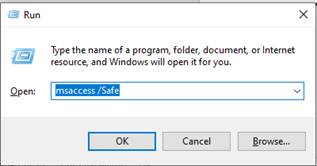
If the Access application starts in safe mode without any error message, this means that add-ins were causing the issue.
You can disable the add-ins by following the below steps:
- Go to File and then click Options.
- In Access Options, select the COM Add-ins option from the Manage dropdown and click Go.
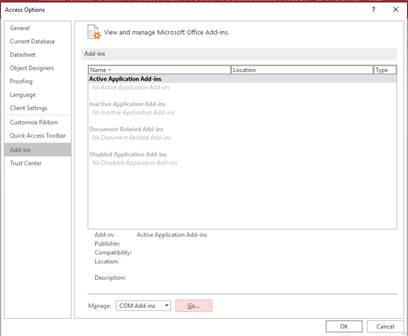
- Under COM Add-ins, select the add-ins you want to remove, click Remove, and then click OK.
- Next, restart the Access application.
Method 3 - Check and Optimize VBA Code
Sometimes, MS Access application stops responding when you try to execute queries containing infinite loop or complex queries that request large tasks that take time to operate. You can check the VBA code and see if any syntaxes are incorrect. You can remove unnecessary queries (if possible). You can also face such issues while using special characters in your Access database. So, make sure you are not using any special characters in the object names in the database project.
Method 4 - Repair MS Office Installation
MS Access application may freeze or stop responding if the program files are damaged or corrupted. In such a case, you can try repairing the MS Office program. Follow the given steps:
- Make sure that all active MS Office programs are closed on the system.
- Open Control Panel.
- Search for Microsoft Office in the installed programs list.
- Right-click on MS Office and click Change.
- Click Repair and then click Continue.
Follow the prompts to complete the repair process. Then, open MS Access and check if the issue is resolved.
Method 5 - Update Microsoft Access Application
The issue may also occur if your Access application is not fully updated. You can check and install Office updates to fix the issue. Follow the below-mentioned steps:
- Open any Office application, such as Excel or Access itself (If it is opening)
- Click File and select Account.
- Under Product Information, click Update Options and click Update Now.
Updating the Office build resolves issues like application crashes by deploying official Microsoft bug fixes (such as resolving broken VBA references),and updating core database drivers (like ACE/JET and ODBC connectors) used for external or linked tables.
Method 6 - Decompile/Recompile to Fix VBA References or Broken Links
The broken references or Access version upgrades can cause inconsistencies in your application's VBA code, leading to freezing or crashing of the application. You can try to decompile and then recompile to rebuild the clean code. This also helps in resolving broken references. To decompile the database, first close Access, open the Run window, and then execute the following command.
C:\Program Files\Microsoft Office\root\OfficeXX\MSACCESS.EXE" "C:\Path\YourDB.accdb" /decompile
Note: Replace database name and version according to the application you’re using.
Now, to recompile the VBA, follow these steps:
- Open the database normally and then open VBA editor (click Database Tools and then click Visual Basic).

- In VBA editor, click Compile Database.
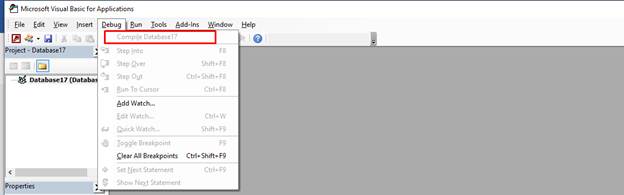
- If it shows any error, fix it.
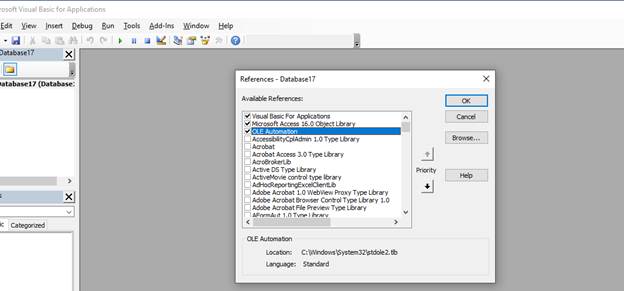
Next, fix the missing references by using the following steps:
- In the VBA editor, click Tools and then References.
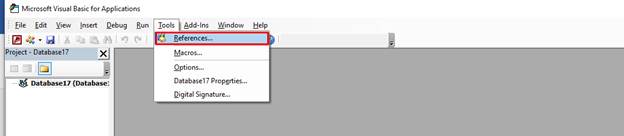
- In References window, select missing references and click OK.
Method 7 - Repair your Database
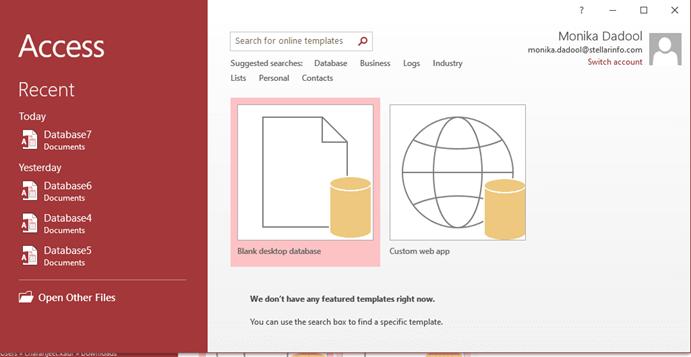
The "Microsoft Access is not responding" error can occur when opening large or corrupted database files. If you can open the application, you can try importing data into a new database to recover your data. This involves creating a new blank database file and importing objects like forms and queries from the corrupt file, which recreates the database structure. If this fails, you can use the Compact and Repair tool to eliminate empty space, reduce the file size, and repair the database. To run the tool, follow these steps:
- In the Access application, double-click Blank desktop database.
- Select File > Close.
- Click the File again, select Info and then click Compact and Repair Database.
- Select the corrupted database file and click Compact.
- Choose a name and location for the repaired copy in the Save Compacted Database As window, and then click Save.
- When the repair process is complete, a copy of the compacted and repaired database is stored where your database file is originally saved.
If you fail to open the application, then you can compact and repair an Access database by running the following commands in the same sequence in your system’s Command Prompt window:
"C:\Program Files\Microsoft Office\root\Office16\MSACCESS.EXE" ^

"C:\Path\YourDB.accdb" /compact ^

"C:\Path\YourDB_compacted.accdb"
In case the Compact and Repair tool fails to repair the corrupted database file or the MS Access application is not opening, you can use a powerful Access database repair tool, such as Stellar Repair for Access. It can even repair a highly corrupted Access database file of any size quickly. It can restore all the objects, including tables, linked tables, forms, indexes, relations, reports, queries, deleted records, modules, and macros from the corrupted database file. It can also recover forms and modules even if protected with a password. The tool works with MS Access 2019, 2016, and older versions and is compatible with Windows 11, 10, 8.1, 8, 7 and earlier versions.
Conclusion
The "Microsoft Access is not responding" error can prevent you from opening the database. However, by following the above-listed troubleshooting methods, you can resolve the error. If your Access database file is corrupt, you can use a professional Access database repair tool, such as Stellar Repair for Access. It can repair the database with complete integrity even if the corruption level is high. It can help you resolve this MS Access error if it is related to corruption. Also, it can repair split databases. You can also use the Stellar Online Access Database Repair Service to fix database (MDB/ACCDB) file of up to 200 MB for free.


Comments (0)